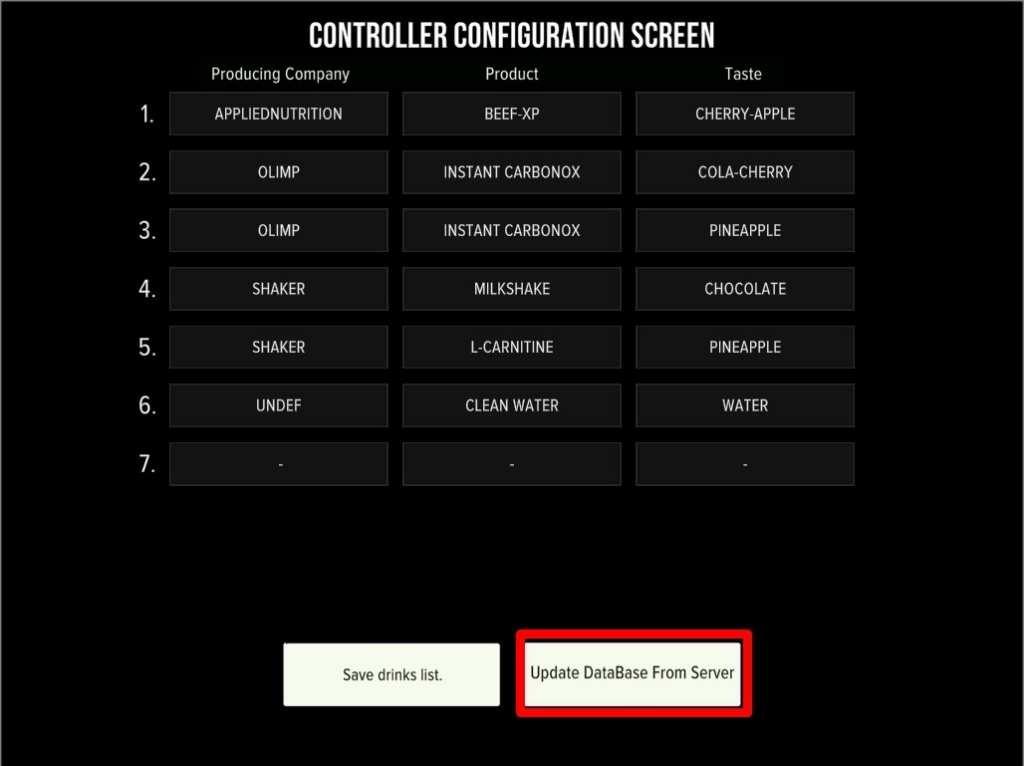
New flavor doesn’t appear after “Update Database”
Full sync path
- Service Mode → Configurator → Change Drinks.
- Tap Update Database From Server and wait for it to finish.
- Assign the flavor to the slot → Save.
- Controller Reboot.
Why a flavor may not appear
- “Update Database From Server” wasn’t tapped — the local catalog won’t refresh without it.
- No Controller Reboot after Save.
- The product isn’t registered on our side yet — send a photo of the container and facts panel (see “Adding your own powder / flavor”).
- The drink category/type doesn’t match — check that the correct category is selected.
If after Update Database and a reboot the flavor still doesn’t show, or shows as “taste.xxx” / a white square, message us and we’ll fix it on our side.