
Table of Contents
Authorization and control of the machine in iShaker telemetry
Link to the website: https://manage.ishakerusa.com/auth
Please note: The machine must be connected to the internet for this service to work!
Register your personal account
To register your personal account, please provide your full name, email address, and phone number to the technical support. You will be sent a link to log in to your account. Clicking it will require you to create a password for your account.
The email address you provided during registration is used as your personal account login.
Authorization of the machine
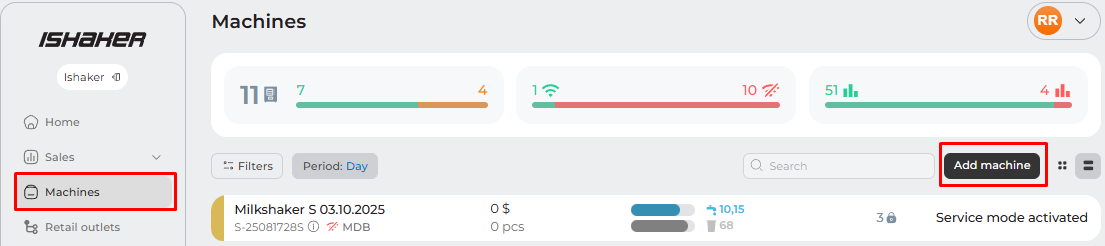
- On the side panel of your personal account, select “Machines” and click "Add machine";
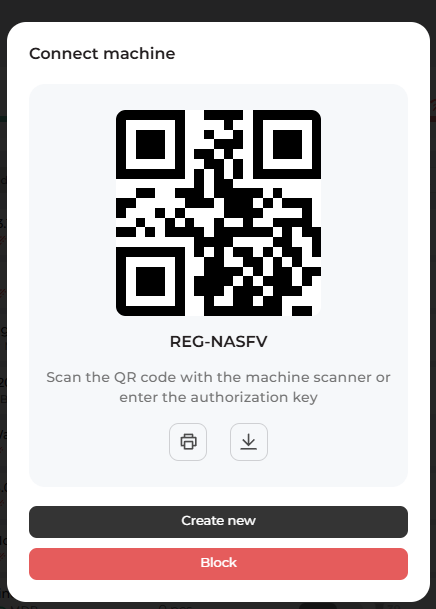
- The REG-key must be entered on the authorization screen in the service menu. The key can be used as a QR code for quick registration using a scanner, or manually entered on the screen (without REG).
- After authorizing the machine, open the service menu, go to the Dosages section, and check for drink settings. If they are missing (the screen is blank), click “Restore old settings”. Wait the process complete.

Description of the personal account functionality
Home tab
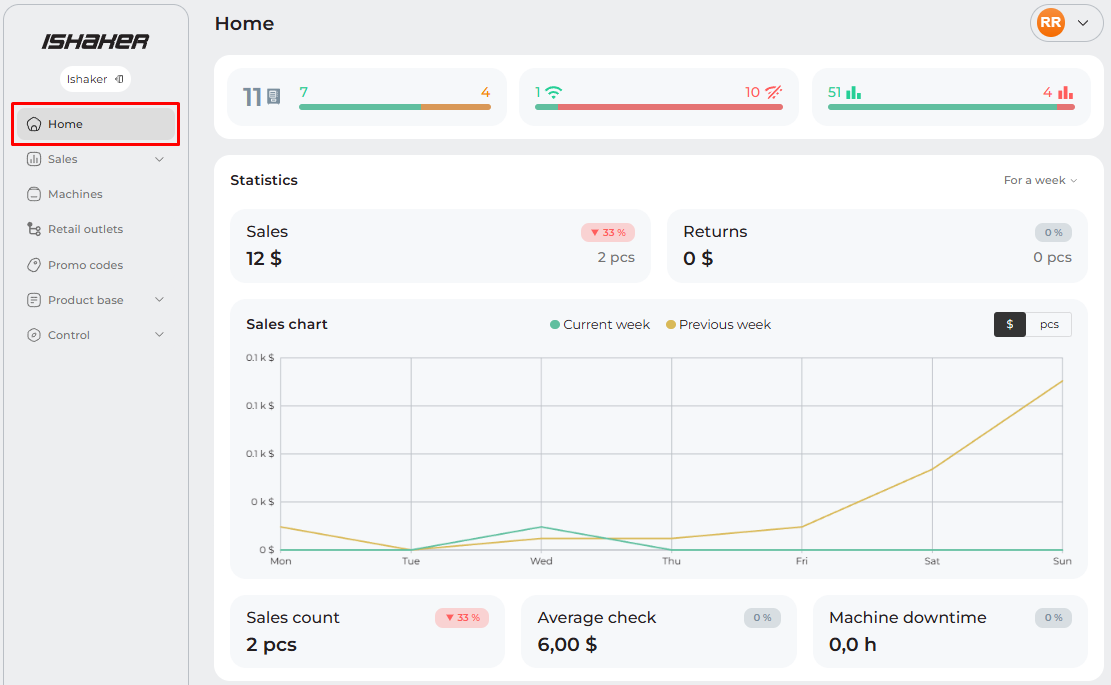
A sales statistics screen for the entire account. It contains general sales information for various periods, a sales chart, and a summary of the best machines.
Sales tab
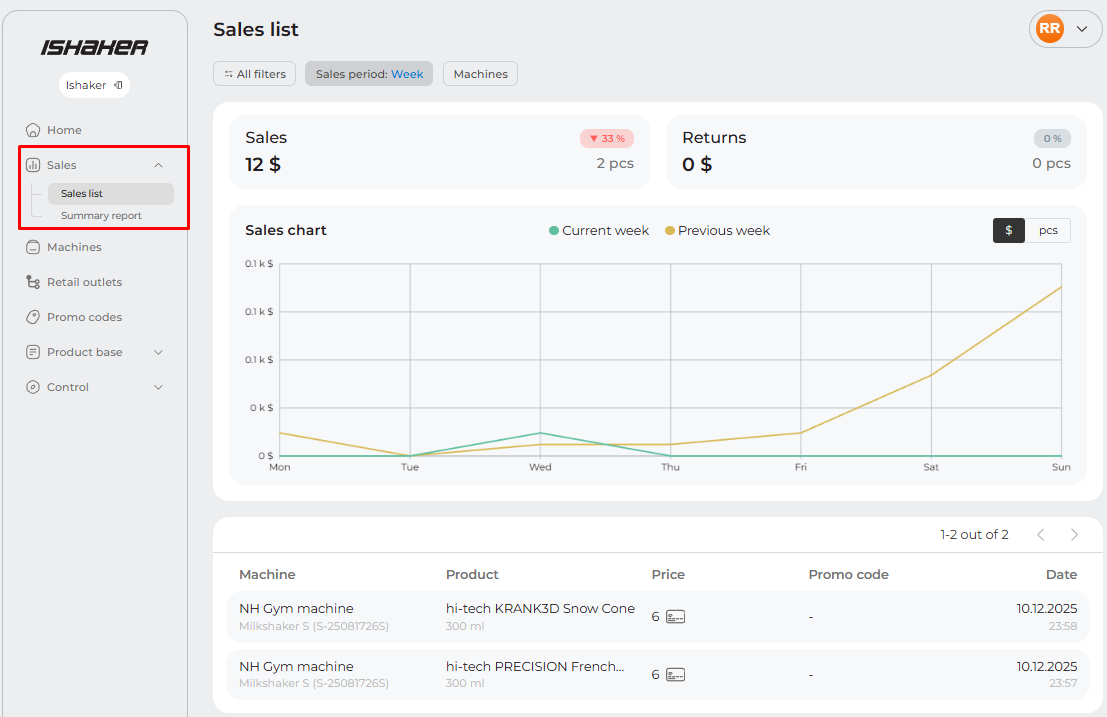
This tab contains detailed information on all sales.
Machines tab
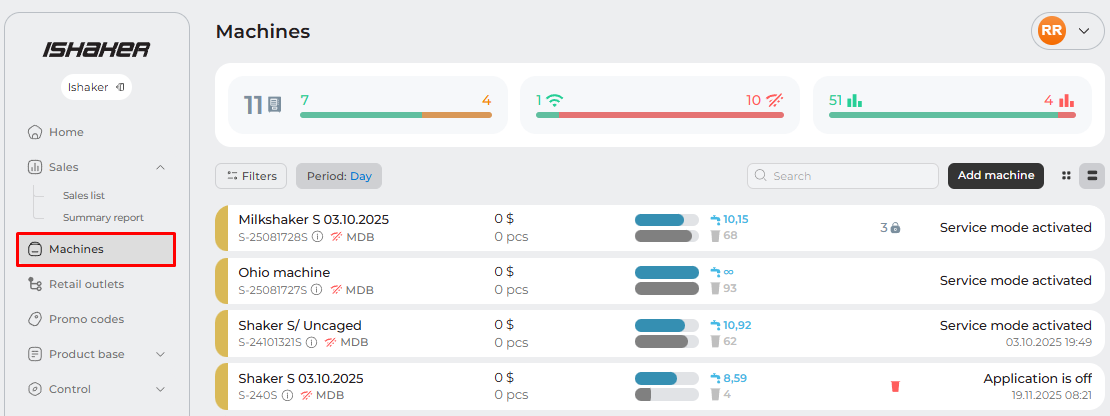
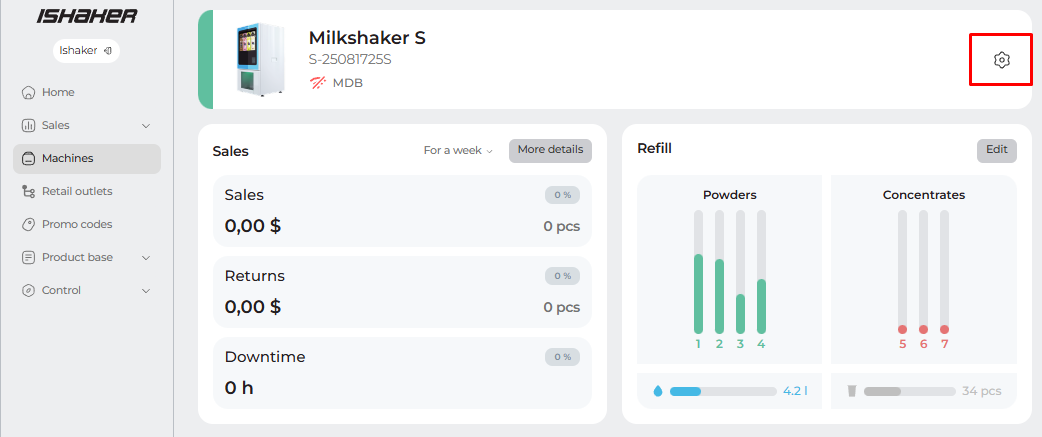
A list of all vending machines authorized in your Personal Account. For each machine, you can preview inventory, sales, and status (online/offline, current operating mode). You can sort by model and status. Click on a machine's row to open the management menu.
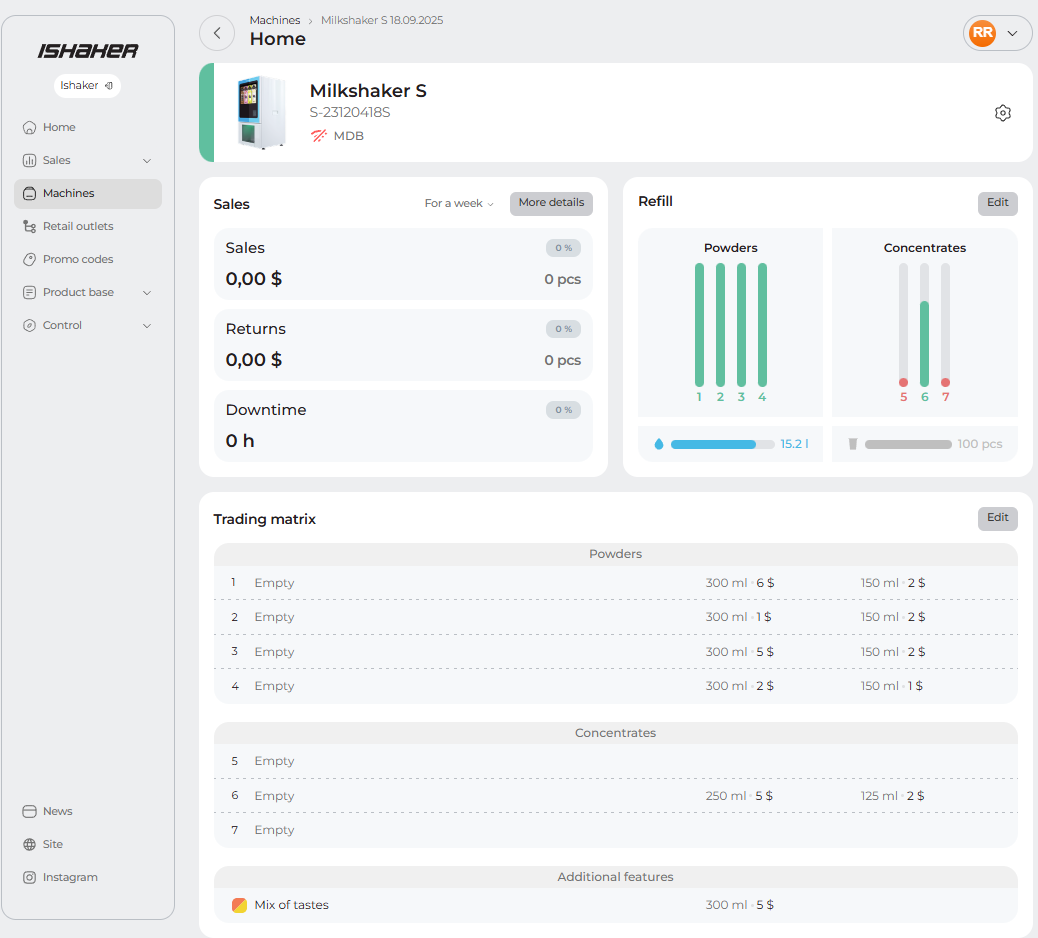
The main page of the machine
This screen contains general information about the machine - current status, balances, sales summary, information messages and activity history of authorized users.
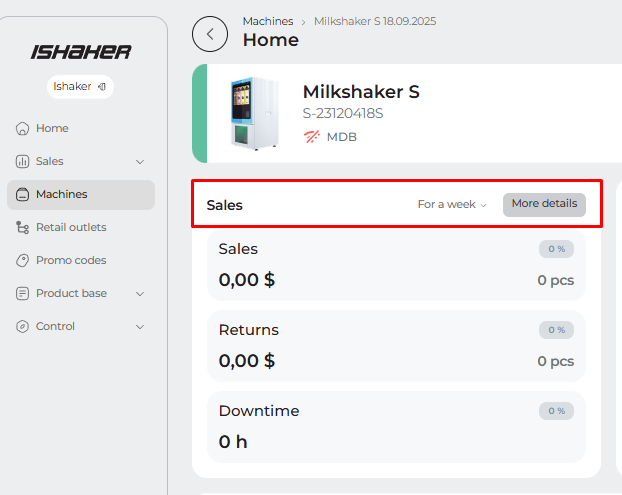
Sales
The screen displays sales details, including descriptions of items sold by flavor, prices with applied promo codes, and purchase time. Export to Excel is available.
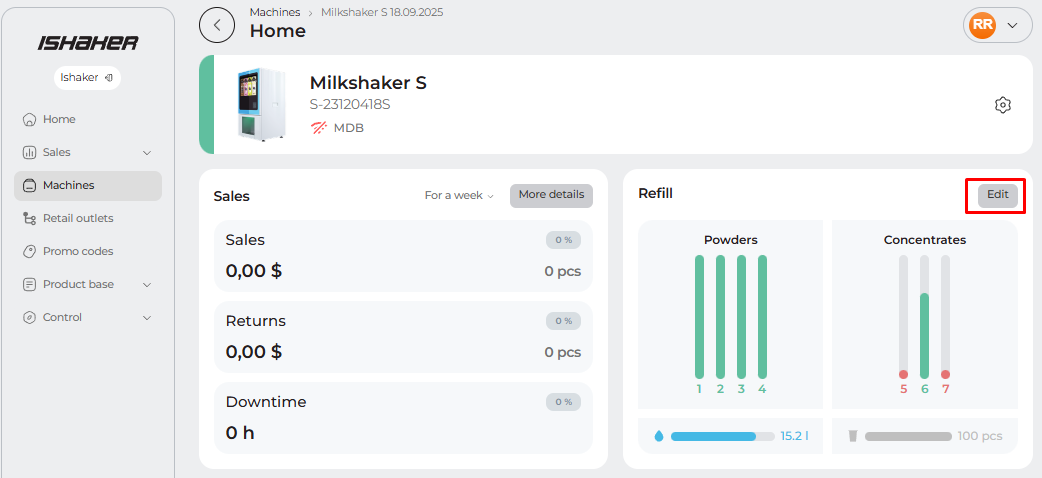
Remains
A detailed screen for the machine's current inventory. Allows you to adjust the remaining water, food, and cups.
Trading matrix
The vending machine's beverage selection settings screen. Allows you to change the vending machine's contents. To save your settings, tap the button in the lower left corner of the screen.
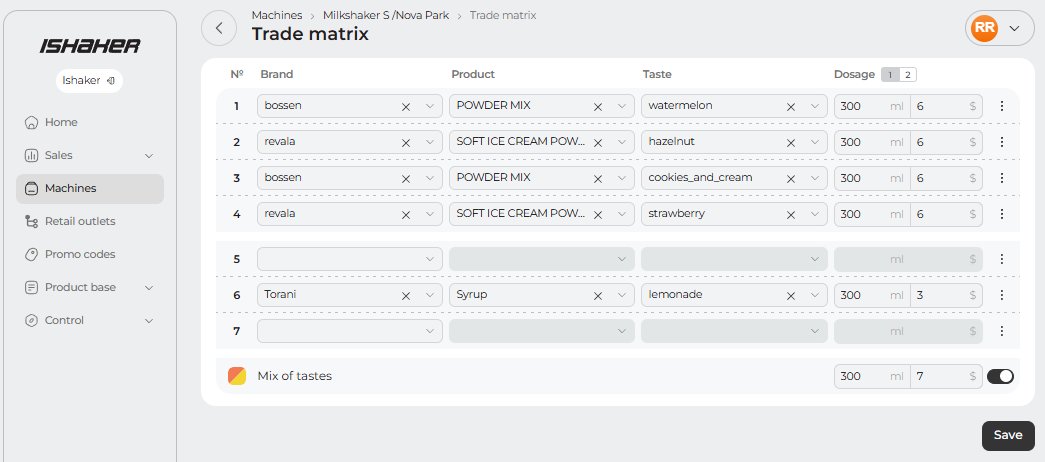
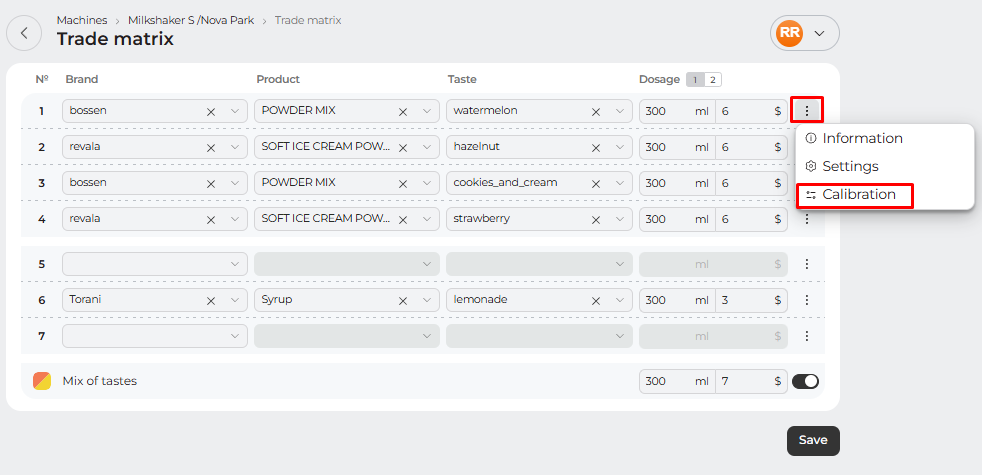
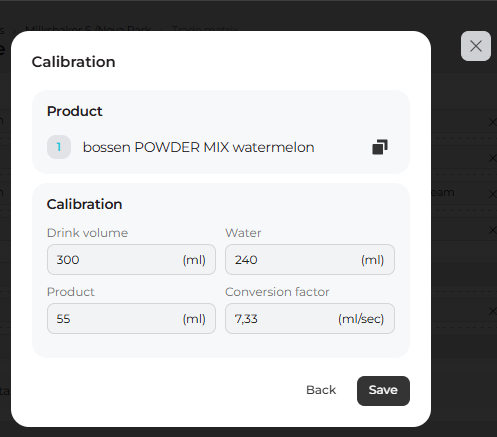
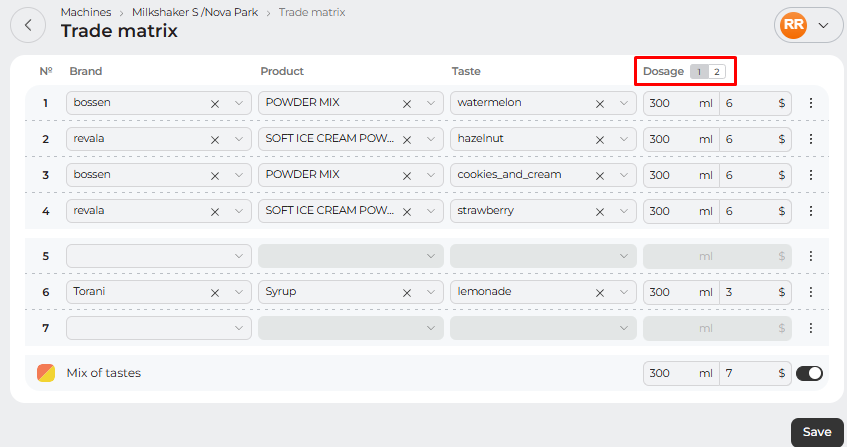
Please note that when changing flavors, the default drink settings are applied. To adjust the water or powder dosage, or change the calibration value, click the three dots next to the desired drink and open the "Calibration" tab. To adjust small drink volumes, click the "Dosage 2" button in the column.
Settings
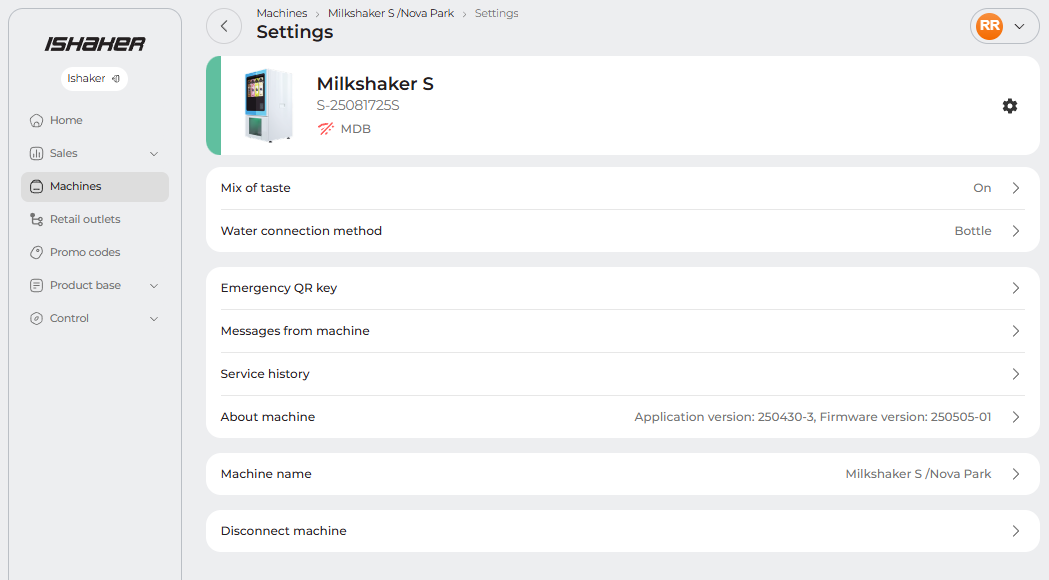
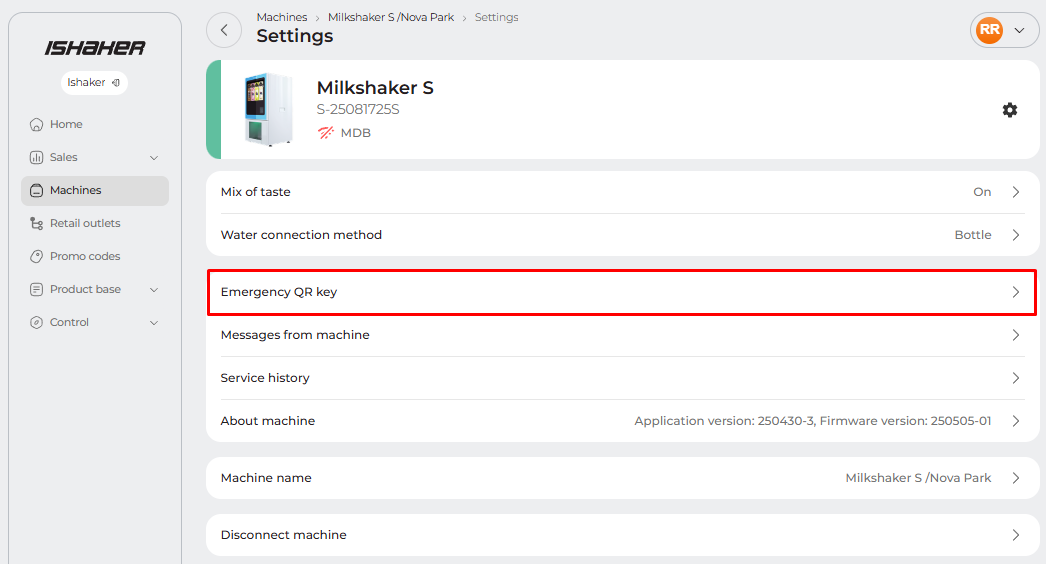
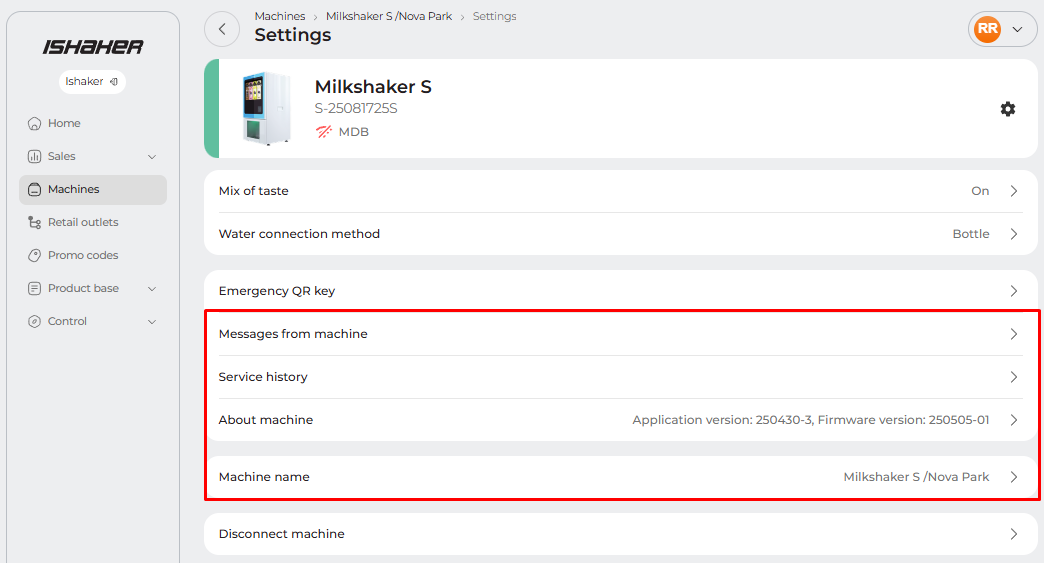
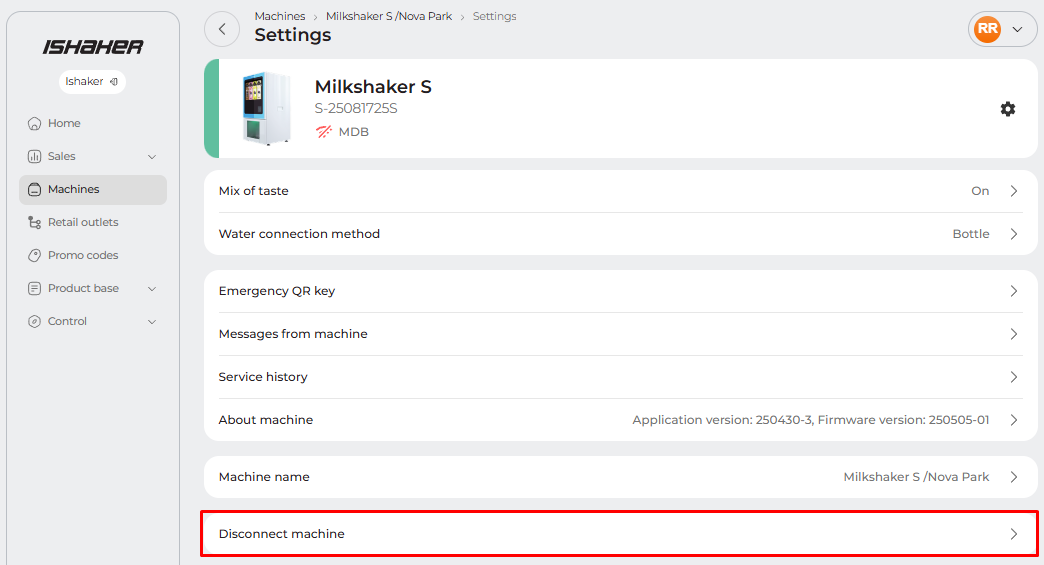
Сlick the nt-usa-machine-settings.png to open. Machine settings screen contain the current machine status and provides access to:
- Reboot and turn off the machine;
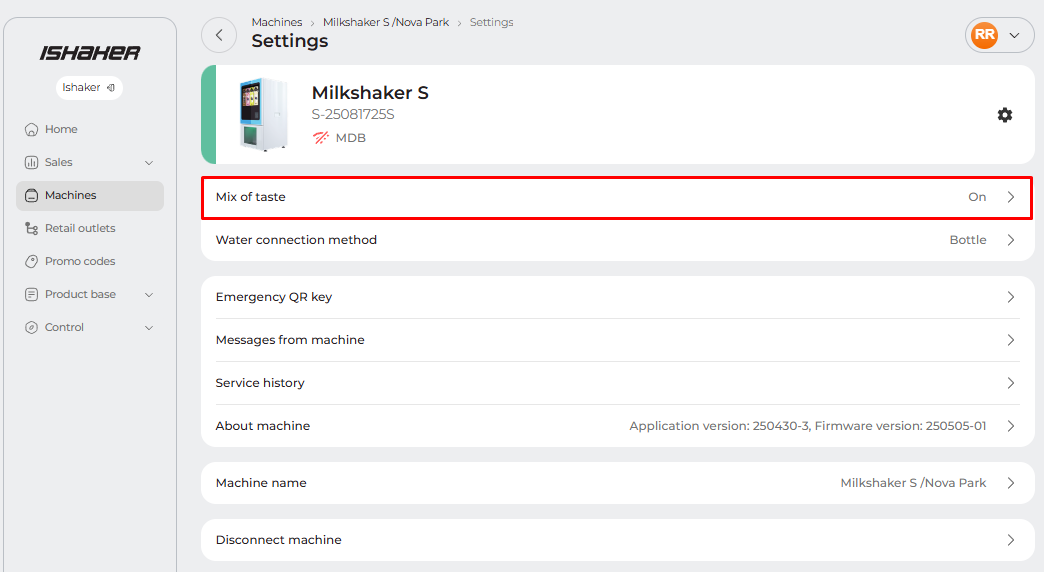
- Activation of the flavor mix and its settings (only Milkshaker supported);
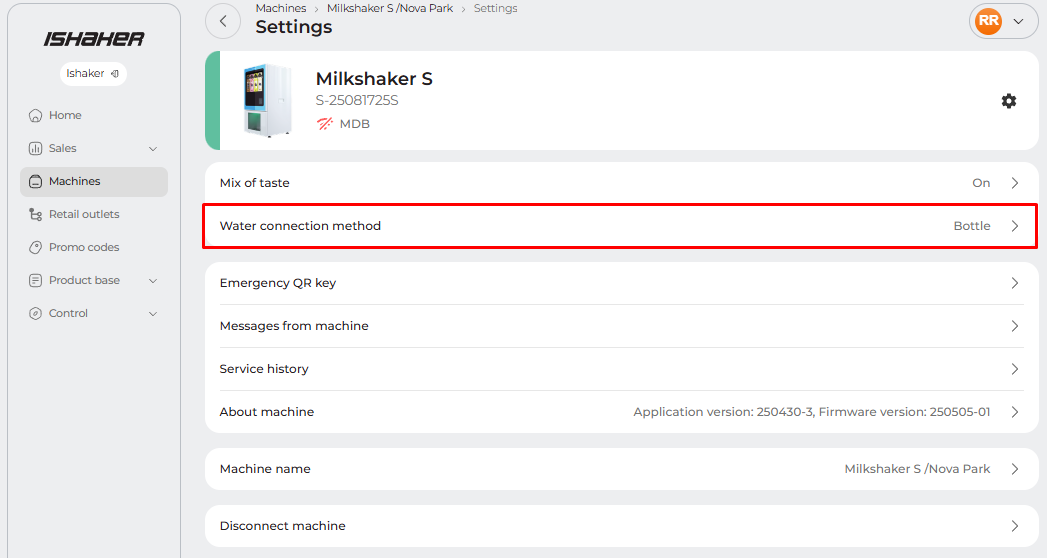
- Selecting a method of connection to water, indicating the capacity of the tank or filter resource;
- Emergency QR-key for machine lock;
- Information about machine - last messages, service history, machine name and software versions;
- Disabling the machine from telemetry.
Promo Codes tab"
A screen for creating and managing all your promo codes. You can search, view, create, and edit promo codes, track usage (when downloading a report), and generate QR codes.
Control
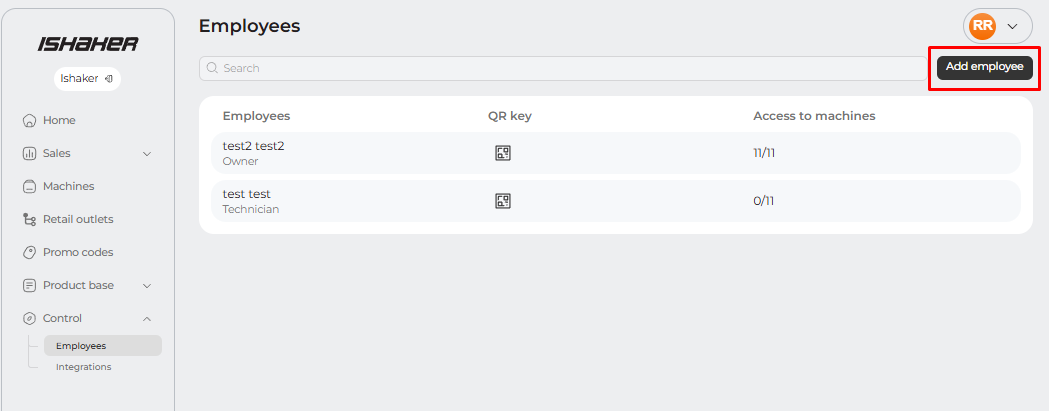
"Employees" section
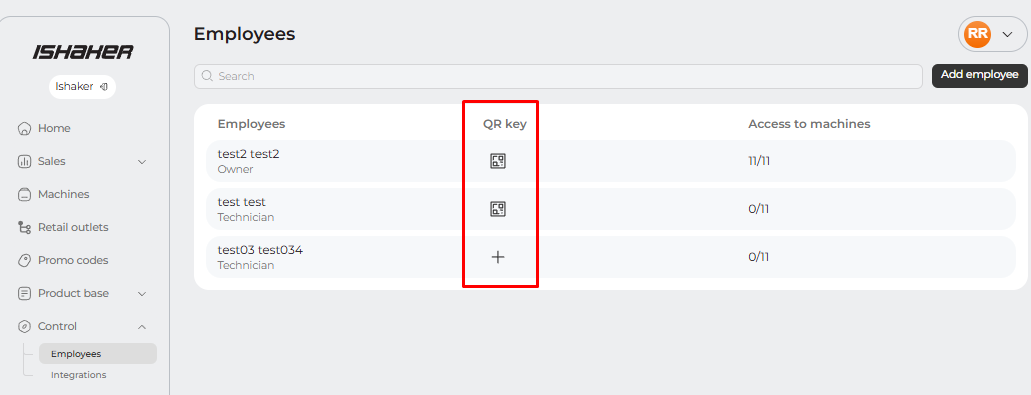
Screen for viewing and adding account users. Also this screen used for creating and assigning QR-codes to users for keyless access to the vending machine. Using the edit code button, you can configure access to the vending machine, change, or block the key. Key activity for other users can be tracked.
Integrations section
The integrations section allows you to connect external services to telemetry, such as Telegram bot for machine status notifications.
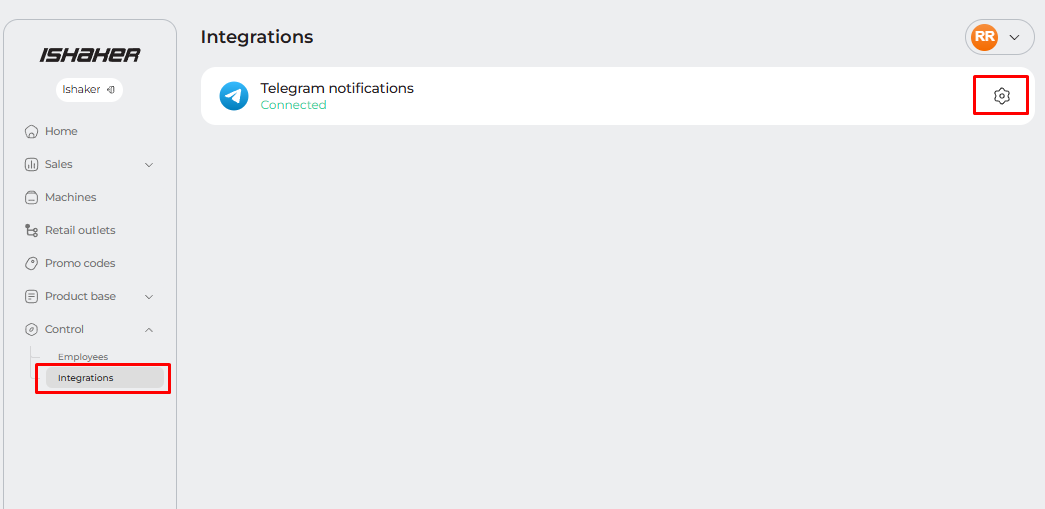
Integration with a Telegram bot will allow you to receive notifications about changes in the machine's status, namely: free mode, service mode, application activity tracking (whether running or not), and machine errors.